GPT Image 2.5 · Flare / Sunburst

GPT Image 2.5 AI Image Generator

Turn a clear brief into product imagery, portraits, posters, and visual concepts. Explore GPT Image 2.5 Flare and Sunburst in one workspace with reference uploads, quality controls, and private image history.

History
Text
Your finished images will appear here.

Find inspiration in Featured images

Explore nine handpicked images from Featured: product ads, travel posters, portraits, infographics, 3D art, sketches, watercolor, drinks, and landscapes.

Start with a clear prompt, add a reference if you have one, and bring your idea to life.

Everything in one place

Write your prompt, upload references, adjust settings, and compare your images without leaving the page.

Start with words or images

Describe a new scene, or upload an image and explain the changes you want to make.

Choose 1K, 2K, or 4K

Pick a resolution for your project, from quick visual ideas to detailed marketing and presentation images.

Your history stays private

Completed images are saved to your account. Download them, share a link, or choose which ones to publish.

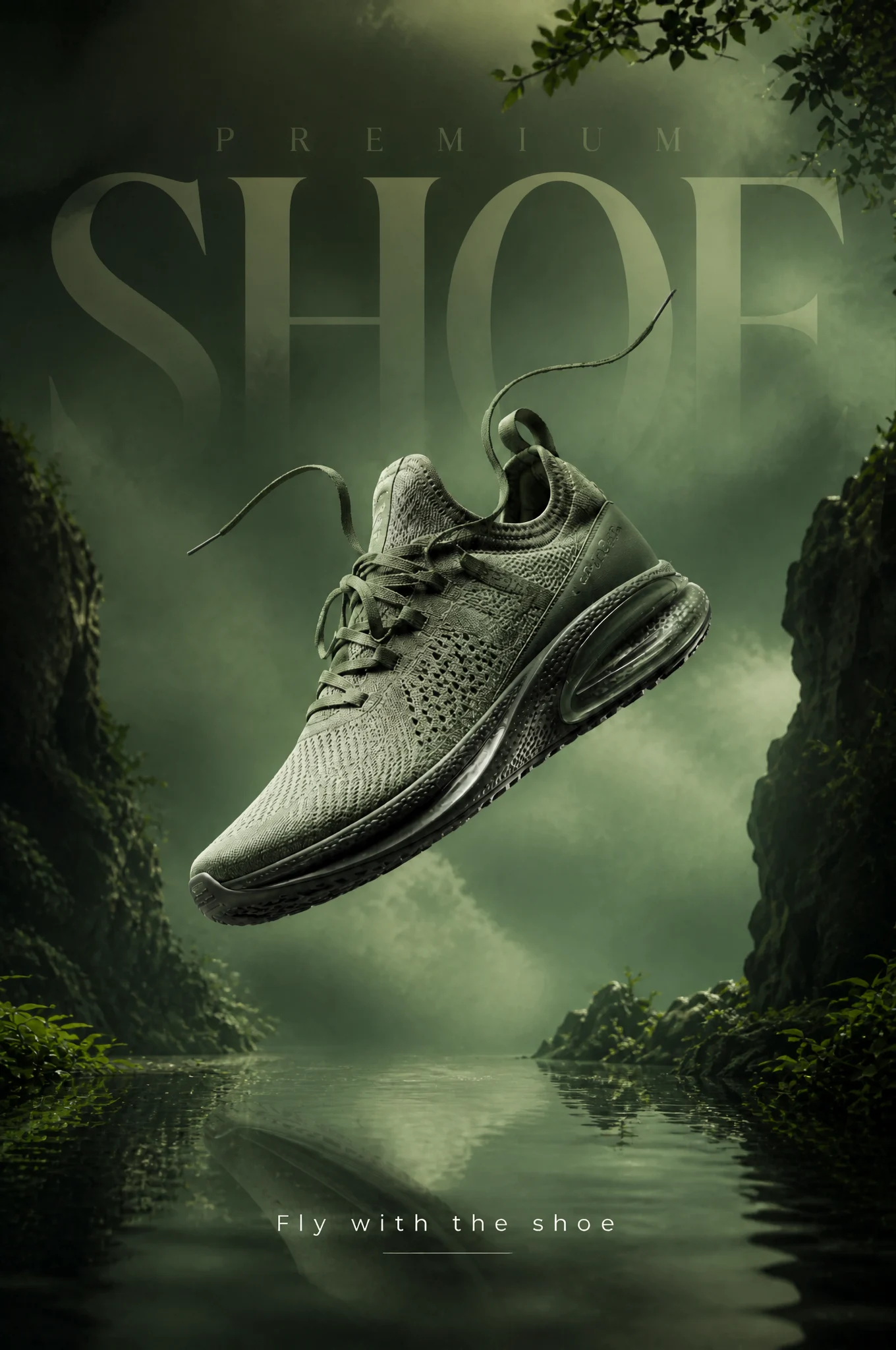
Dark green running shoe floating above water in a forest-themed product advertisement
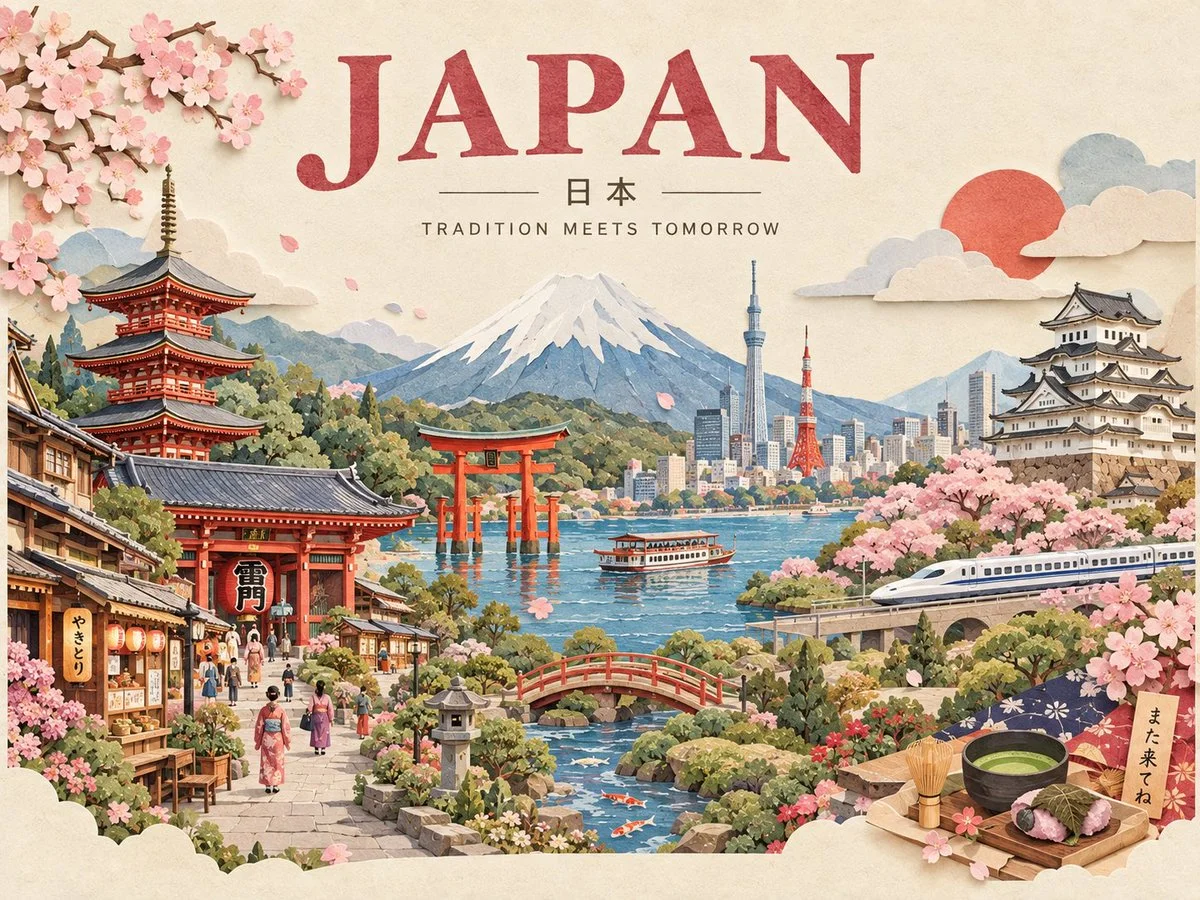
Layered paper-cut travel poster with Mount Fuji, cherry blossoms, and Japanese landmarks
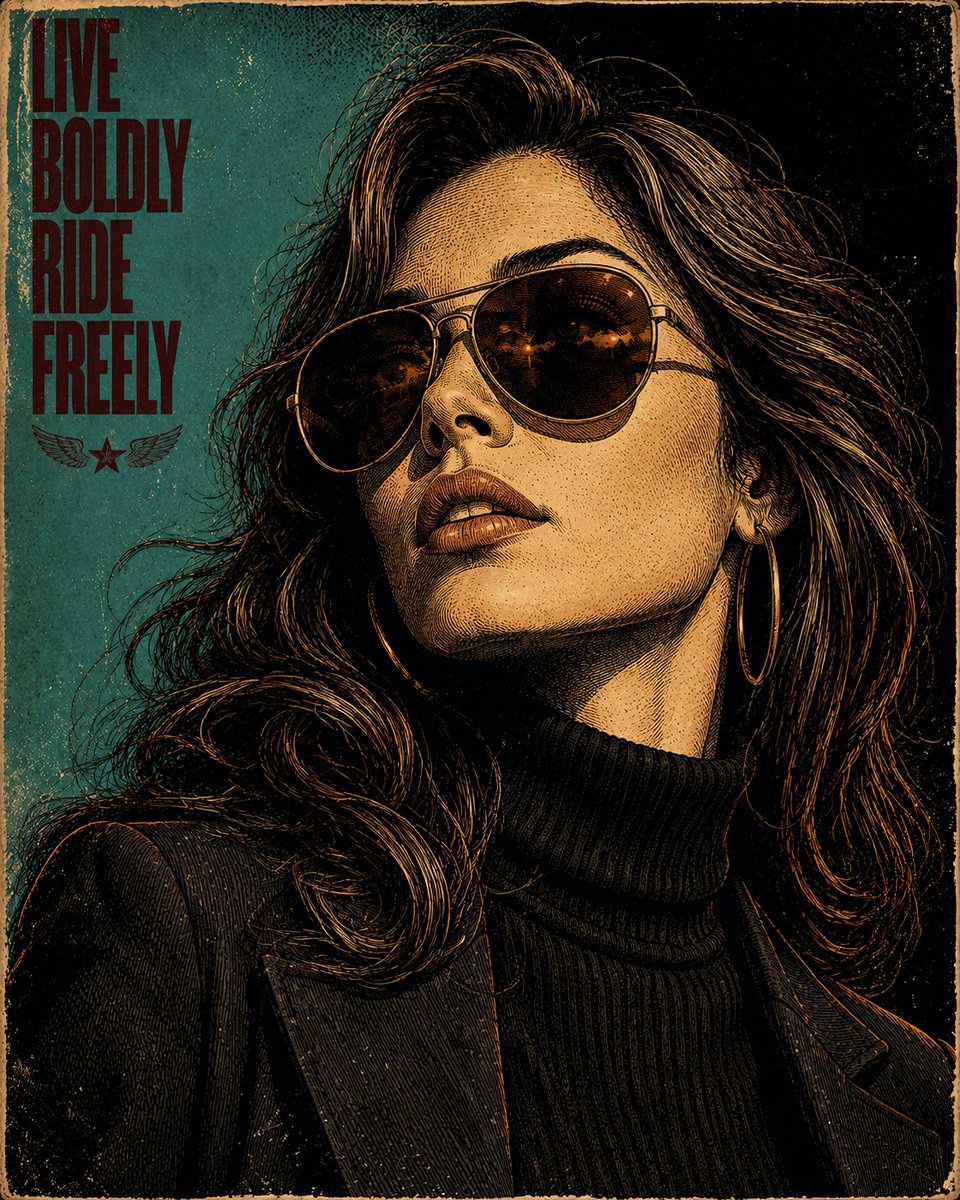
Editorial portrait of a woman wearing sunglasses against a teal background
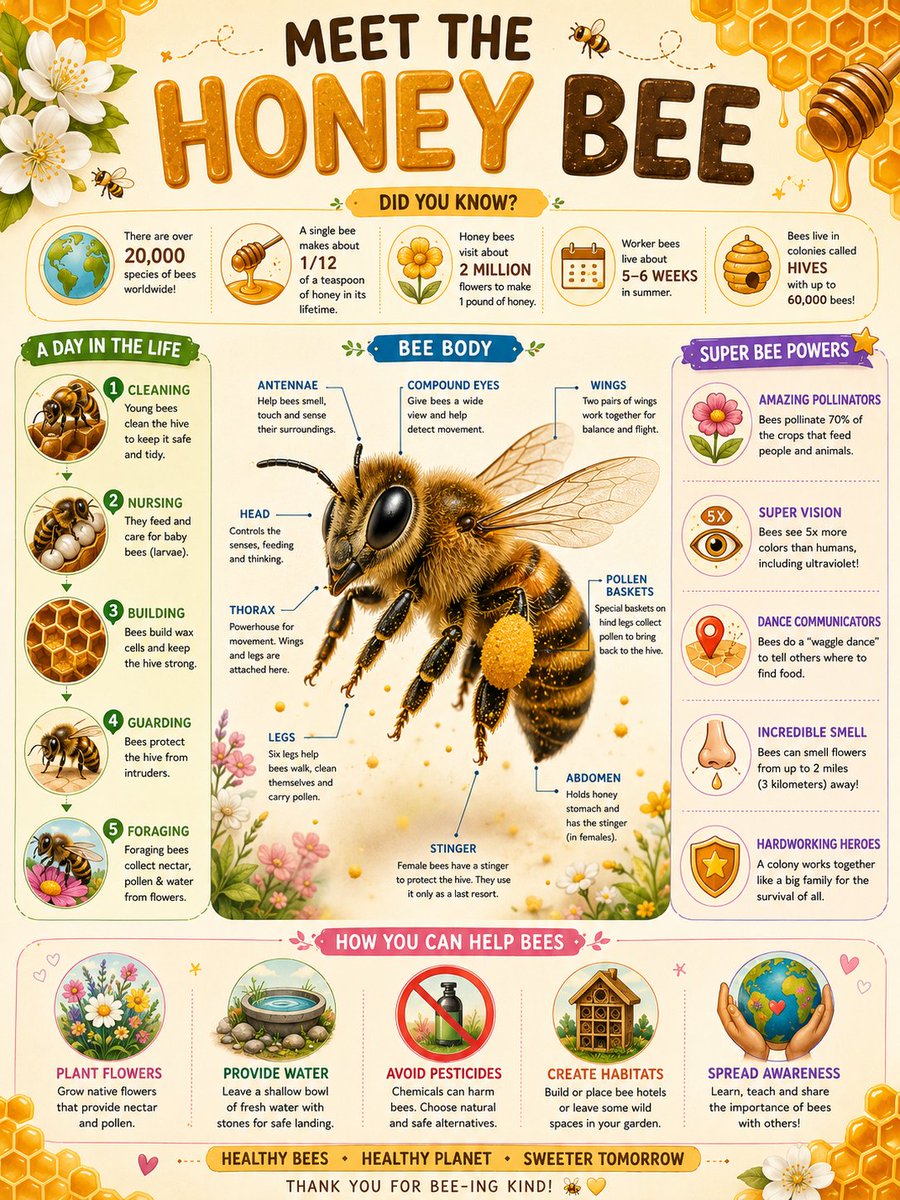
Illustrated honey bee infographic with flowers, anatomy details, and educational labels
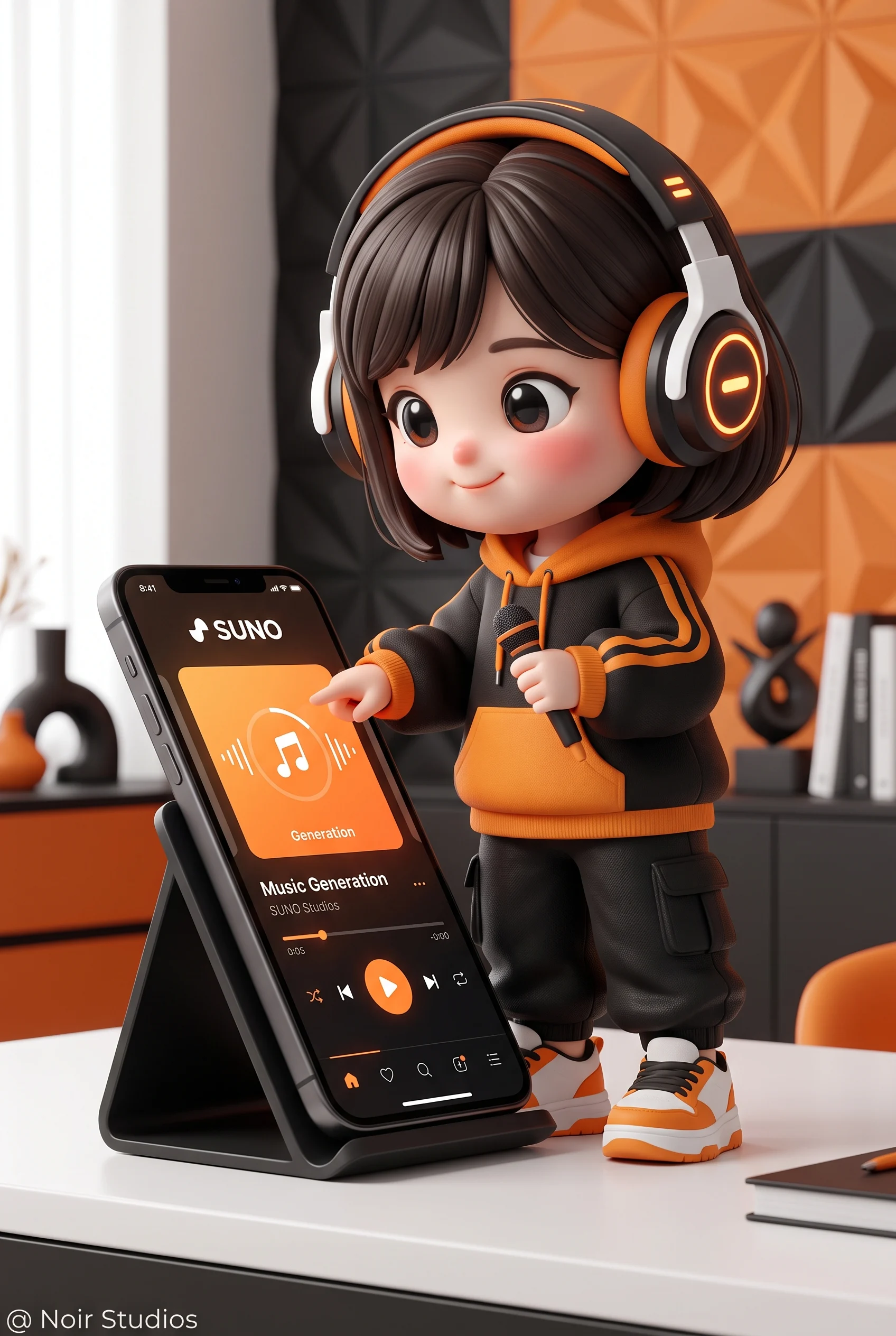
3D chibi character wearing headphones beside an oversized smartphone
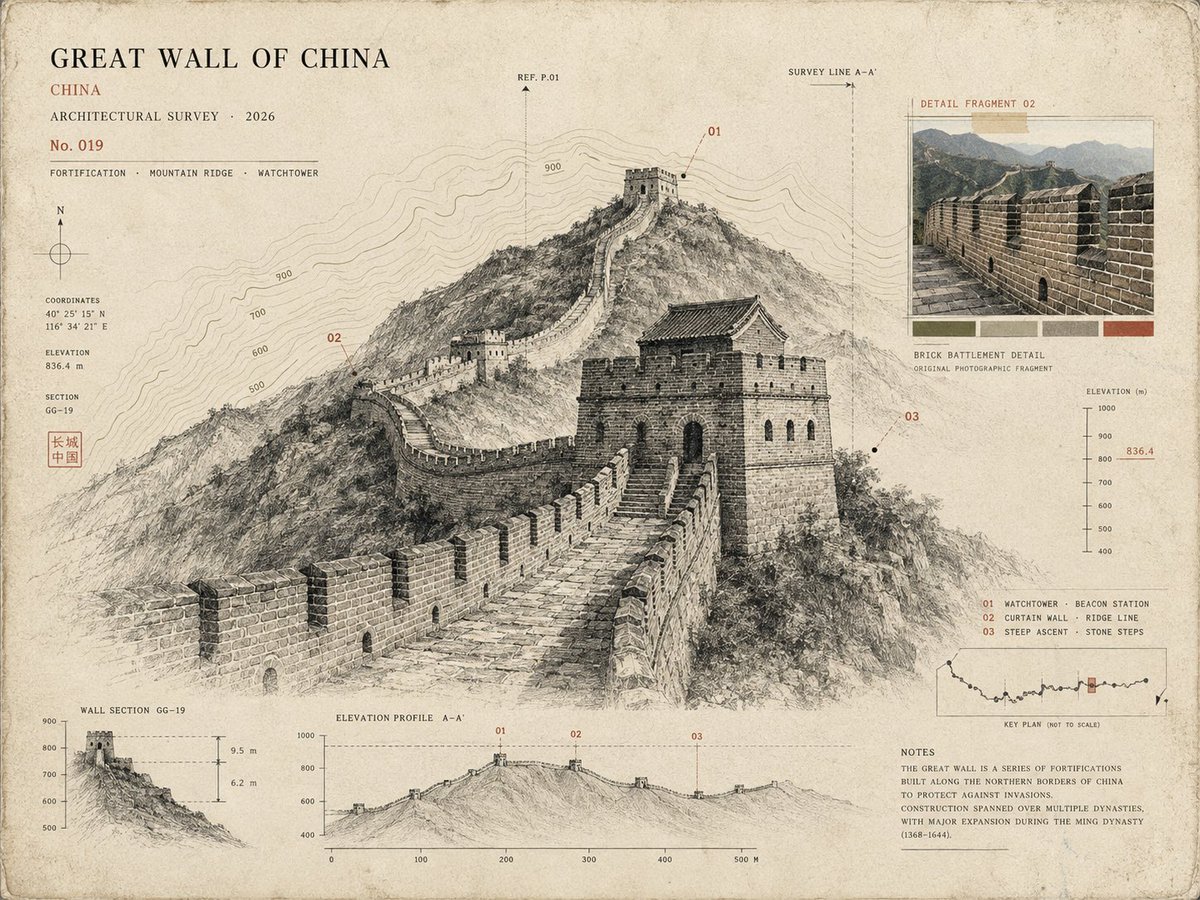
Great Wall of China drawn in pencil on a cream travel-journal page
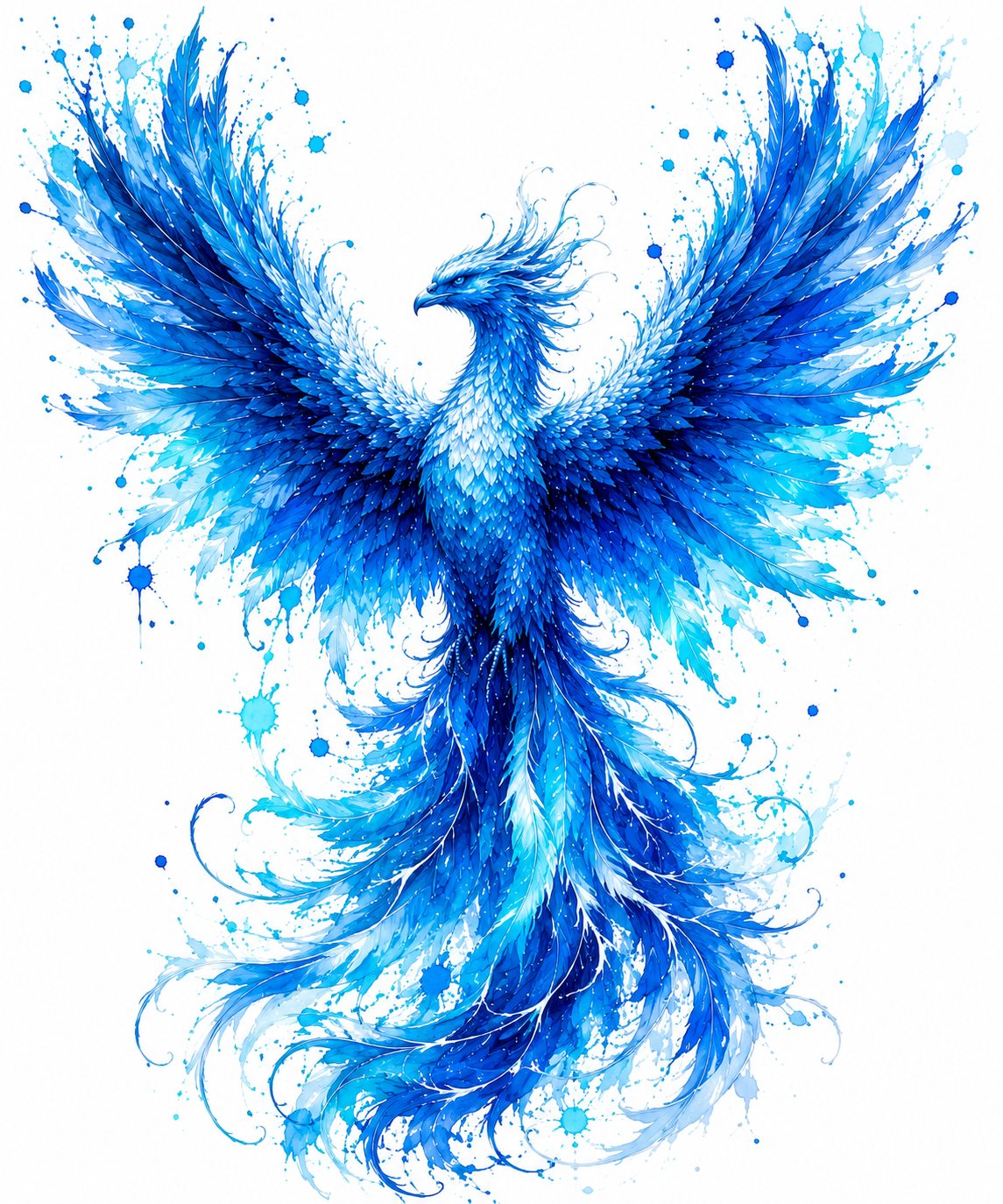
Blue watercolor phoenix spreading its wings amid flowing brushstrokes
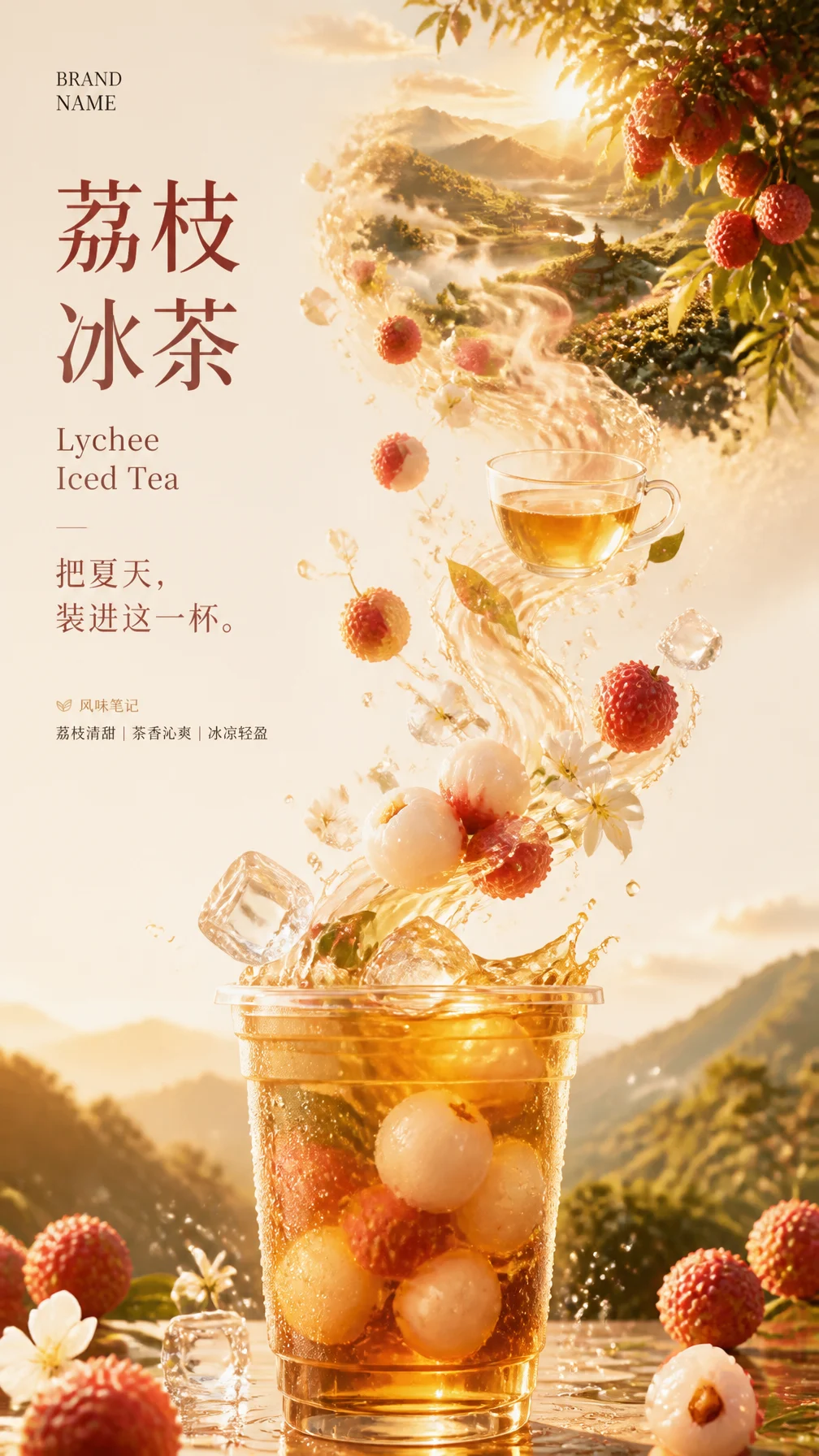
Lychee iced tea advertisement with fruit, ice, and warm sunlight
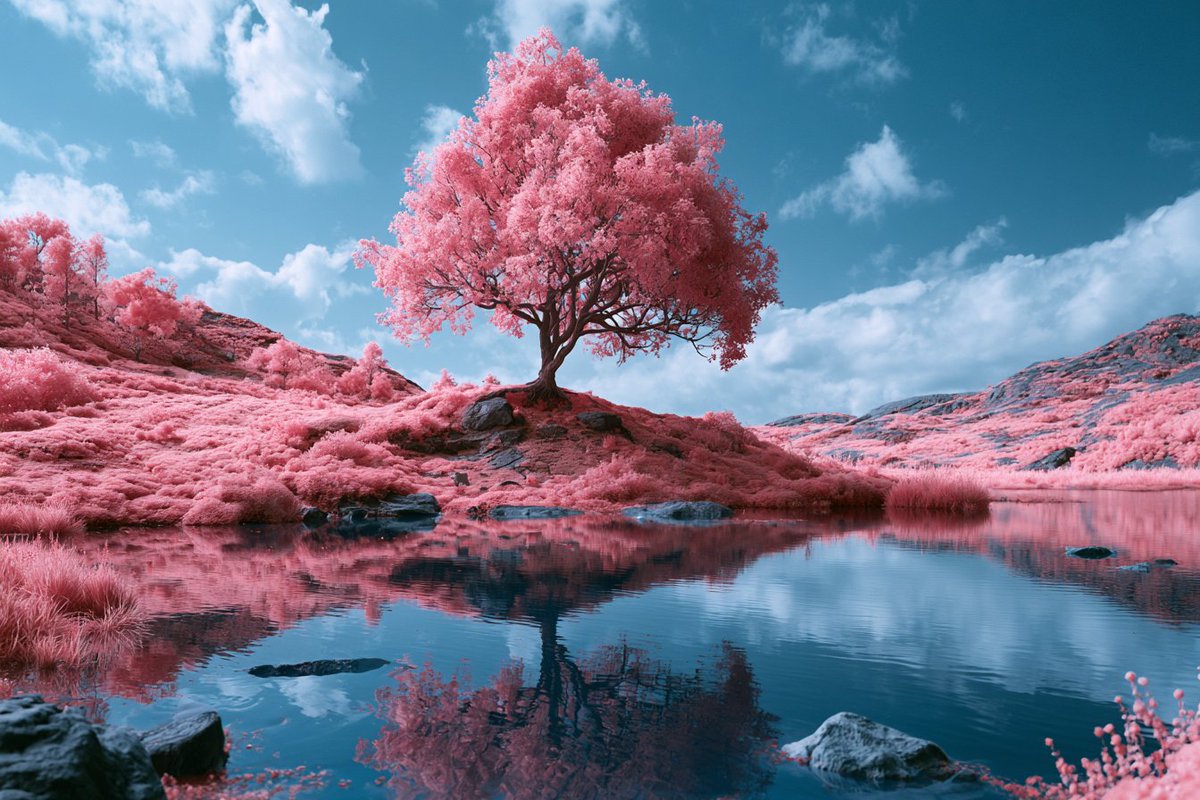
Pink trees reflected in a still lake beneath a blue sky

What is new in GPT Image 2.5?

OpenAI introduced ChatGPT Images 2.5 on September 8, 2026, with improvements to image fidelity, editing precision, and visual instruction following. These are the creative directions behind the new model family.

More natural light and recognizable subjects

OpenAI describes richer textures, more natural lighting, and better preservation of people and objects from reference photos. For a portrait or product brief, name the details that define the subject: facial features, packaging, materials, proportions, and the intended setting.

Focused edits with a stable composition

The release emphasizes changing a requested element while retaining surrounding details, with better consistency across successive edits. Write a narrow instruction for the background, product, or text you want to change, then explicitly list the subject, framing, and colors you want to preserve.

Detailed briefs and structured visual styles

GPT Image 2.5 is designed to follow more complex layouts and artistic directions. Describe the hierarchy of a poster, the placement of a product, or the visual language of a campaign. Exact wording, a clear focal point, and a defined audience make your intent easier to communicate.

GPT Image 2.5 Flare and Sunburst

OpenAI introduced two API models with different creative priorities. Choose either name in the model menu; aspect ratio, resolution, quality, background, and output count remain in the familiar toolbar.

GPT Image 2.5 Flare

Everyday creative work

Flare

OpenAI positions GPT Image 2.5 Flare as the default for most applications, balancing image quality, precise edits, and faster generation. Its intended uses include social content, rapid visual concepts, product experiences, and high-volume creative workflows.

GPT Image 2.5 Sunburst

Detailed creative work

Sunburst

OpenAI positions GPT Image 2.5 Sunburst for premium workflows that need tighter control across edits, such as campaign assets and polished product imagery. The official model prioritizes precision with longer generation times; actual timing depends on the request and service conditions.

From idea to finished image

Three steps to make your creative brief clear and refine the result.

Describe

Tell us what you want to create

Describe the subject, composition, lighting, style, and intended use. Include any wording that needs to appear in the image.

Adjust

Choose your image settings

Set the aspect ratio, resolution, quality, and number of images. Try a simple version first, then refine the details once you like the direction.

Review

Compare and save your favorites

Open the preview, compare recent results, and download the images you like. Upload a result as a reference when you want to keep working on it.

How to write a stronger GPT Image 2.5 prompt

Start with the deliverable: a skincare campaign hero, an editorial portrait, a product listing image, or an event poster. Add the audience, aspect ratio, and visual hierarchy before decorative details.

Use references with a clear role. Explain which image defines the subject, which sets the style, and which supplies composition. For an edit, separate what must stay from what should change.

Put text that must appear in quotation marks and specify its placement. Review spelling and fine details in the finished image before publishing a campaign or presentation.

GPT Image 2.5 FAQ

Create your next image with GPT Image 2.5

Start with a clear prompt, add a reference if you have one, and bring your idea to life.

Back to generator